01
Stream over NDI
Send a live iPhone camera feed to compatible production systems, switchers, streaming platforms, and computers on the same network.
 Qapture
Get Qapture
Qapture
Get Qapture
Built for live production
Qapture turns your iPhone into a flexible camera and production tool for theatre, rehearsals, live events, webcam use, streaming, and professional video workflows.
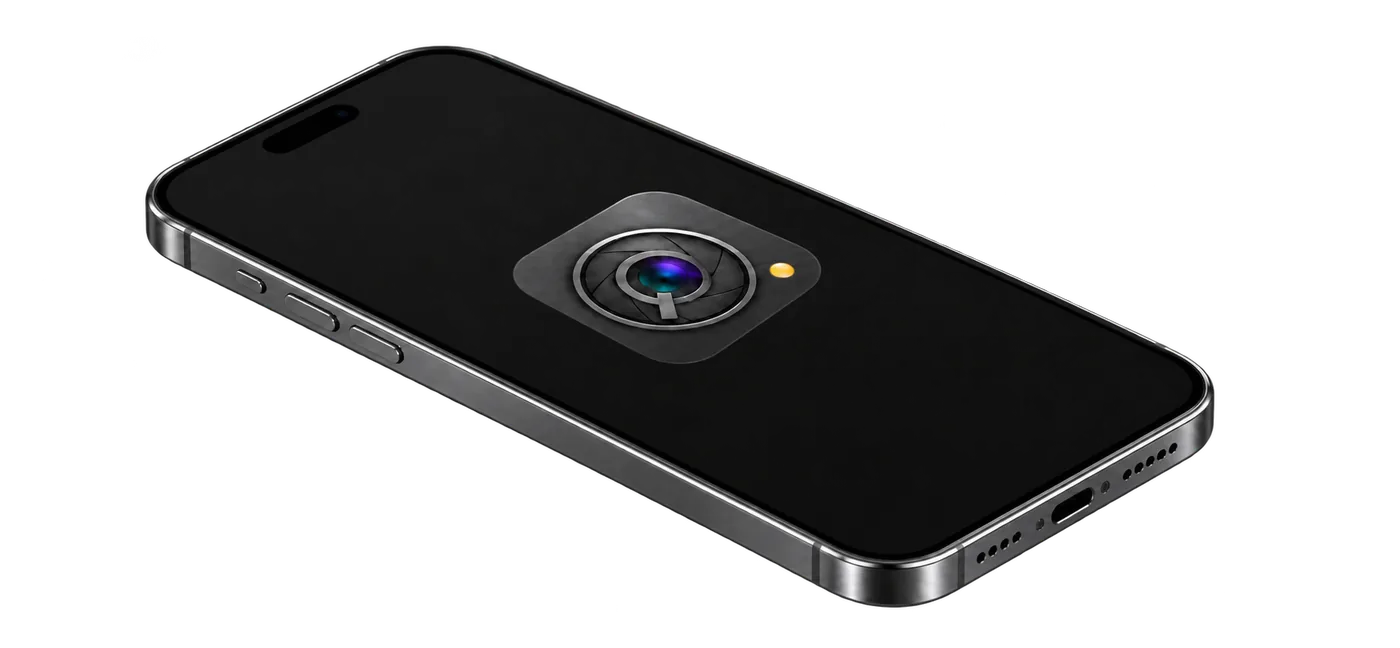
Designed for the moments when every cue, frame, and moment matters.
One device. More control.
Keep your live feed, show control, recording, and visual cues together in one focused app.
Send a live iPhone camera feed to compatible production systems, switchers, streaming platforms, and computers on the same network.
Connect to QLab and other OSC-compatible software. Send commands, receive commands, and build a workflow around your show.
Display current production cues directly over the camera view, with positioning that keeps essential information clear and readable.
Capture rehearsals, performances, demonstrations, and production tests while using Qapture as a live camera source.
Made for the room
From the first rehearsal to opening night, Qapture keeps camera operators close to the action and the production team connected to the image.


Ready when you are
Qapture gives your iPhone a place in the production system—without making the workflow feel complicated.
Network setup
NDI is a high-bandwidth video stream, so the network matters as much as the phone. A few router settings make the difference between a steady stream and a stuttering one.
A dedicated router you control beats venue Wi-Fi. Avoid guest networks and captive portals, and turn off client or AP isolation so your iPhone and computer can see each other.
Connect the receiving computer to the router by Ethernet. Only the iPhone should be on Wi-Fi, which keeps the wireless link as uncluttered as possible.
Join the 5 GHz network, not 2.4 GHz. Giving 5 GHz its own network name stops the iPhone from drifting onto the slower, more crowded band.
Set a fixed channel instead of Auto, and choose a non-DFS channel (36–48 in most regions). DFS channels can be forced to change when the router detects radar, which interrupts the stream.
Narrower channels are usually steadier in crowded venues, and 40 MHz leaves plenty of headroom for a single camera stream.
Keep the router close to the iPhone, in line of sight and raised off the floor. Keep it out of racks and away from metal and other radio gear.
Turn off VPN, ad-blocking, and other add-on features on your show router. Make sure the iPhone’s Low Data Mode is off for that Wi-Fi network.
Begin with 720p at 30 fps (the Network Saver preset) and step up only if the stream stays smooth. Change one setting at a time so you know what helped.
We recommend a GL.iNet travel router: the Beryl or Slate series, or a higher model. They are compact, easy to pack for touring, and give you the manual channel, width, and band controls described above.
Wired is steadier than any Wi-Fi. If your setup allows it, connect the iPhone to the router by Ethernet with a compatible adapter, and Qapture will show the connection as wired.
Check the stream for several minutes from the real show position, with the venue’s normal wireless activity around you, before the audience arrives.
Support
Qapture works best when your iPhone and receiving computer are connected to the same local network. Check the in-app Help section for setup guidance, NDI configuration, OSC mappings, recording, cues, and camera controls.
Qapture is built by a working performer who travels, so support replies may take a little time. Thanks for your patience.
Also for QLab
If you work with QLab, you’ll love qlabbuddy.com. Take a look and see a whole new way to control and view QLab!